

Fixing Browser and Connection Problems on a Casino Website
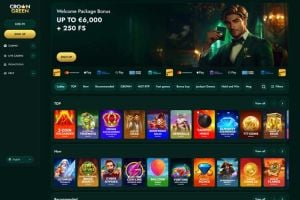

Browser errors can make an online casino appear unavailable when the real cause is an outdated browser, blocked website data, unstable Wi-Fi or a device setting. The published information for Crowngreen describes browser-based access on smartphones and tablets, rather than requiring a native mobile application. That makes basic browser troubleshooting especially relevant. Before attempting to sign in or submit account information, confirm that the service is permitted for your location and that the current terms accept your account. Then work through the checks below without rushing into repeated login attempts.

Start by separating a site problem from a device problem
The first useful question is whether the problem affects one device, one browser or every connection you use. Open another well-known website in the same browser. If other sites also fail, the likely cause is your internet connection, router, mobile data service or wider network outage. If other sites load normally but the casino page does not, the issue may involve browser settings, stored website data, DNS resolution or the service itself.
Try the same page in a second current browser on the same device. A page that works in one browser but not another points towards an extension, privacy setting, cached file or compatibility issue. If it fails everywhere, test a different connection, such as mobile data instead of home Wi-Fi. Avoid using public Wi-Fi for account access, particularly if the network requires an unusual sign-in page or has uncertain security.
Record the exact symptom before changing several settings. A blank screen, repeated loading spinner, “connection refused” message, expired session or incorrect-password warning each suggests a different cause. Note the time, device, browser and connection type. This information is useful if support is needed and helps you avoid repeating the same failed steps. Do not create another account to bypass a login problem, because the published terms restrict users to one account.
Check the browser before changing account details
Use a supported, up-to-date version of a mainstream browser such as Chrome, Safari, Firefox or Edge. Browser updates often repair security and compatibility defects, while older versions may fail to handle modern encryption, scripts or responsive page elements. Restart the browser completely after updating, rather than leaving an old session open in the background.
Private browsing can provide a quick diagnostic test because it usually starts without normal cookies, cached files and many extensions. If the page works privately but not in a standard window, disable extensions one at a time. Ad blockers, script blockers, password tools, VPN browser add-ons and aggressive tracking protection can interfere with login fields, verification windows or payment pages. Re-enable only the tools you trust after identifying the conflict.
Clearing cookies and cached data can fix a broken session, but it also removes saved preferences and may sign you out of other websites. Clear data for the affected site where the browser allows that option, then reopen the page from a fresh tab. Check that JavaScript and cookies are not blocked for the service. Do not install an unfamiliar “compatibility tool” or browser extension suggested by a pop-up; it may be malicious.
When a secure connection will not establish
A secure connection warning should be treated seriously, not bypassed automatically. Check that your device date, time and time zone are correct, because an incorrect clock can make valid security certificates appear expired. Also confirm that you are using the genuine website address supplied in the operator’s current materials. Similar-looking domains, unexpected redirects and urgent requests for passwords are warning signs.
Temporarily disconnect a VPN or proxy only as a diagnostic step. These services can alter routing, trigger security checks or make a website treat the connection as unusual. If the page works without the VPN, review its location and security settings rather than assuming the casino has failed. A workplace, school or public network may also block gambling-related domains or payment content, and you should not attempt to evade those controls.
New Zealand users can consult CERT NZ’s online safety guidance for practical advice about suspicious websites, account protection and unsafe connections. That general guidance does not confirm whether any particular gambling service is authorised or available. If a warning mentions an invalid certificate, malware or a deceptive page, close the tab and do not enter credentials until the address and connection are independently confirmed.
Improve loading on phones and slower connections
A responsive website may work on a phone without a downloadable application, but performance still depends on the handset, browser and network. Close unused tabs and apps, restart the browser and ensure the device has sufficient free storage. Older phones may struggle with animated lobbies or live content even when ordinary pages load correctly. Switch between Wi-Fi and mobile data to identify whether the problem follows the device or the network.
Weak signals can interrupt authentication, game loading and account updates. Move closer to the router, pause large downloads and restart the router if other services are also slow. On mobile data, check whether data-saving mode, a restricted background-data setting or a poor signal is limiting the browser. Avoid repeatedly refreshing a page during a payment or account action, as the visible page may lag while the request is still being processed.
Reduce unnecessary load by closing live streams and other high-bandwidth activities. If the browser offers an option to block autoplay video, use it for general browsing, but remember that blocking scripts or media may prevent particular content from displaying. Never judge a connection solely by whether the homepage appears; sign-in, verification and account pages may use separate requests and can fail for different reasons.
Know when to stop troubleshooting and ask for help
Support is appropriate when the same error remains after testing a current browser, a fresh session and a second connection. Provide the error wording, approximate time, device model, browser version and whether the issue affects the whole site or only one page. Do not send your password, full payment details or one-time security code. Legitimate support should not need those secrets to investigate a technical fault.
If you are locked out, use the displayed password-recovery process rather than registering again. The published account information describes recovery through an email address and a six-digit code, although access may still require account verification or support assistance. Check your email’s spam folder and confirm that you are using the address associated with the account. Stop if recovery messages arrive unexpectedly or contain links that do not match the verified domain.
Technical access does not establish that registration or gambling is allowed in New Zealand. The supplied material contains conflicting indications about local eligibility, and the service is described as offshore rather than New Zealand-regulated. Check the live restrictions, registration controls and account terms before proceeding. If the site remains unavailable, wait for an official response instead of relying on third-party claims, mirror domains or unofficial downloads.
Common browser and connection questions
Why does the page work on mobile data but not home Wi-Fi?
The Wi-Fi network may be using a DNS filter, firewall, parental-control setting or provider-level block. Restart the router and test another device, but do not try to bypass restrictions that apply to your household, workplace or public network. If ordinary websites also fail, investigate the connection itself before contacting site support.
Should I clear all browser data when login stops working?
Not necessarily. First try a private window or clear cookies for the affected site only. Clearing all browser data removes saved sessions, preferences and other website information. If the problem disappears after site-specific data is removed, sign in again carefully and save no credentials on a shared or potentially unsafe device.
What should I do if a verification code never arrives?
Check the email address, spam folder and connection, then request one new code rather than many in quick succession. Older codes may become invalid when a newer one is issued. If no message arrives, contact official support using the verified site channel and do not create a second account.